The Syllable Grid
The syllable grid is the panel on the right-hand side of the realyrics editor. It reads the lyrics you are writing, splits every line into syllables, and lays those syllables out on a grid of beats — one column per beat, one row per line of the song. Instead of tapping the line out loud and hoping, you can see which syllable lands on which beat, and whether the syllables you want stressed are sitting on the beats that are actually strong.
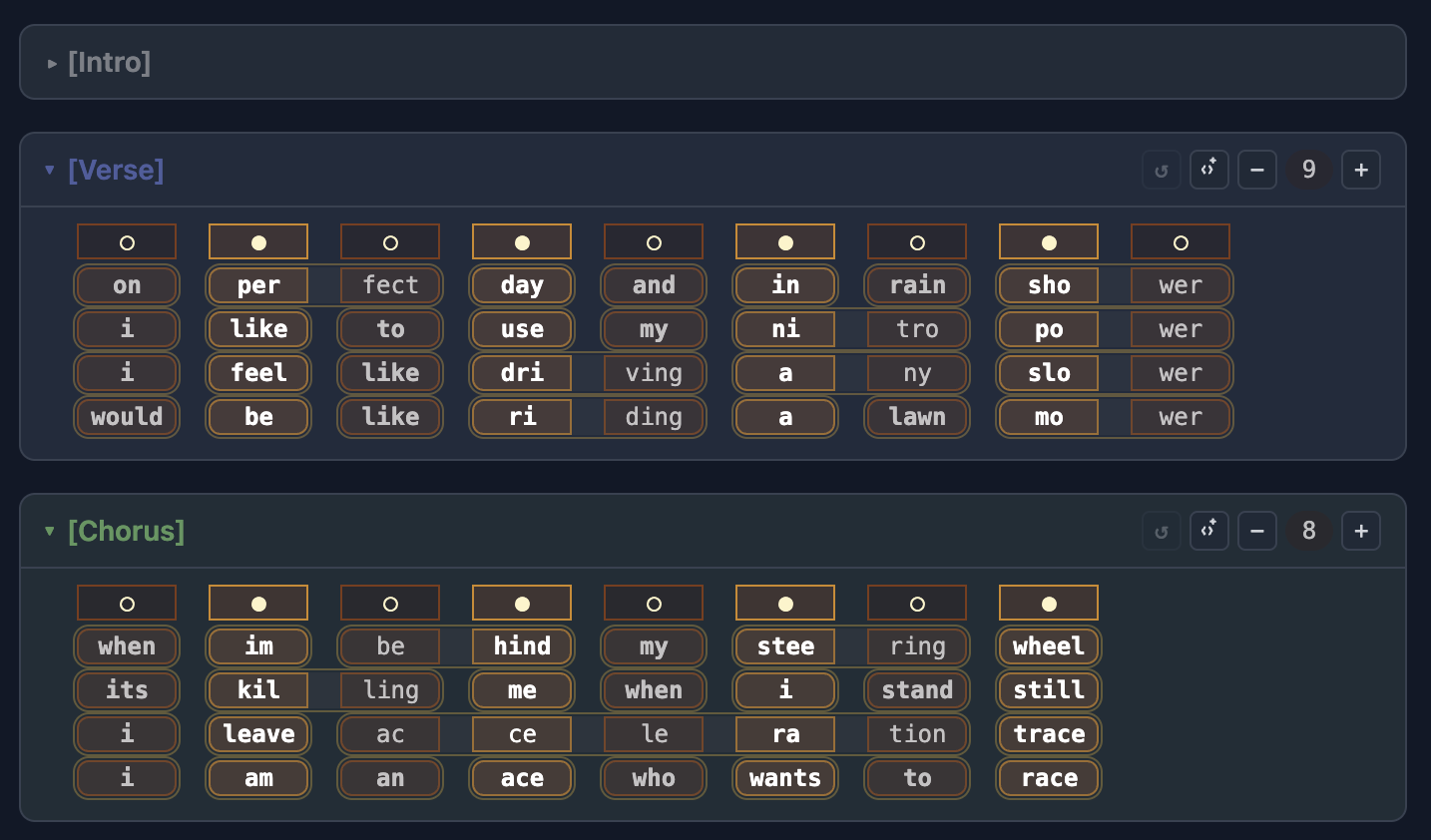
This is what a well-configured grid looks like. The lyric is:
- On perfect day and in rain shower
- I like to use my nitro power.
- I feel like driving any slower
- Would be like riding a lawn mower.
and the chorus below it:
- When I’m behind my steering wheel,
- It’s killing me when I stand still.
- I leave acceleration trace,
- I am an ace, who wants to race.
How the grid is built
Everything in the grid follows from the lyrics in the editor. You never enter syllables by hand — you write the song, and the grid re-reads it as you type.
- One card per block. Every [Verse], [Chorus], [Bridge] heading in your lyrics gets its own card, with its own beat count and its own strong beats. A block with no lyric lines under it shows Instrumental.
- The beat row. The row of small cells across the top of a card is the bar itself: one cell per beat, for a strong beat and for a weak one. Click a cell to flip it.
- One row per line. Each line of the block that contains at least one syllable becomes a row. Blank lines are skipped.
- One syllable per beat cell. The syllables of a single word are wrapped in one outline, so you can see at a glance where a word starts and ends.
- Bold is stress. A syllable drawn in bold is the stressed syllable of its word. Where a bold syllable sits on a beat, the word and the pulse agree.
- A dashed empty cell is a beat with nothing on it in that line.
- A dotted cell inside a word is an intra-word stretch: the word is being held across a beat, its next syllable landing later than the beat that follows.
- Cells to the left or right of the grid are overflow — the syllables of a line that did not fit inside the bar. They are still shown, so you can see how far over the line runs.
- Words with no vowel of their own — Russian «в», «с», an English "'s" — have no syllable, so they ride in the gap next to the syllable they belong with rather than taking a beat.
- The beat count of a block can be anything from 2 to 24, and starts at 10.

How the app chooses the beat for each syllable
The grid does not simply pack syllables in from the left. For every line it tries the possible placements of the line's words along the bar and keeps the one that seats the most stressed syllables on strong beats. When two placements tie, it prefers, in order: the one with fewer gaps between words, the one that pushes fewer syllables out of the grid, and the one that starts closest to "first stress on the first strong beat".
One rule is worth knowing because it explains layouts that look odd at first: a syllable cut off past the right edge costs the placement one point of its stress score. So the grid will not shove a whole word past the end of the bar just to make one alignment look good — an alignment you cannot see is not worth having.
That entire calculation is driven by which syllables are marked as stressed. Which brings us to where those marks come from.
Where the stress marks come from
There are exactly three sources of stress, and they are consulted in a fixed order. The first one that answers wins.
- A stress mark in the lyrics themselves. If you write the mark into the text, it beats everything else. In Russian and Ukrainian that is a combining acute over the vowel — «рукоя́ткой»; in English it is an accented vowel — á é í ó ú ý, as in "accelerátion". You do not have to type it by hand: put the cursor after the vowel and press Tab (Flip vowel stress), which moves the mark onto the vowel to the left of the cursor and clears any other mark in that word.
- Your own dictionary. Press Ctrl+Shift+A (Add to stress dictionary) with the cursor in a word and realyrics remembers it — for that word, everywhere, on every device you sign in from. Your dictionary outranks the built-in one, so this is how you fix a word the app keeps getting wrong without carrying a mark around in the lyrics.
- The built-in stress dictionary. Otherwise the app looks the word up in the stress dictionary that ships with realyrics — Russian, Ukrainian and English each have their own.
When no source knows the word, the languages behave differently, and this is deliberate:
- In Russian and Ukrainian the grid draws no bold syllable at all for a word of two syllables or more. An invented mark is indistinguishable on screen from a known one, so the app would rather show you nothing than a guess. A word of two syllables or more with no bold syllable is a word to add to your dictionary — or to mark in the text.
- In English the first syllable is used as a fallback.
Two Russian and Ukrainian rules need no dictionary at all, and neither of them is a guess:
- A one-syllable word is always bold on its only vowel. There is no second syllable to be wrong about, so this holds whether or not any dictionary has heard of the word — «взор» and «я» in the screenshot below are bold for that reason, not because a dictionary knows them. It is also why a one-syllable word's stress cannot be changed by adding it to your dictionary: there is nothing to change it to.
- ё always carries the stress in Russian. «вдвоём» is bold on «ём» whether or not any dictionary has heard of it.
Two more things are worth knowing about Add to stress dictionary. It stores the stress the grid is showing you at that moment, so mark the word in the text first if the shown stress is wrong. And if nothing knows the word, it is still saved — with its stress left blank — so it is remembered for highlighting without a made-up mark being written down.
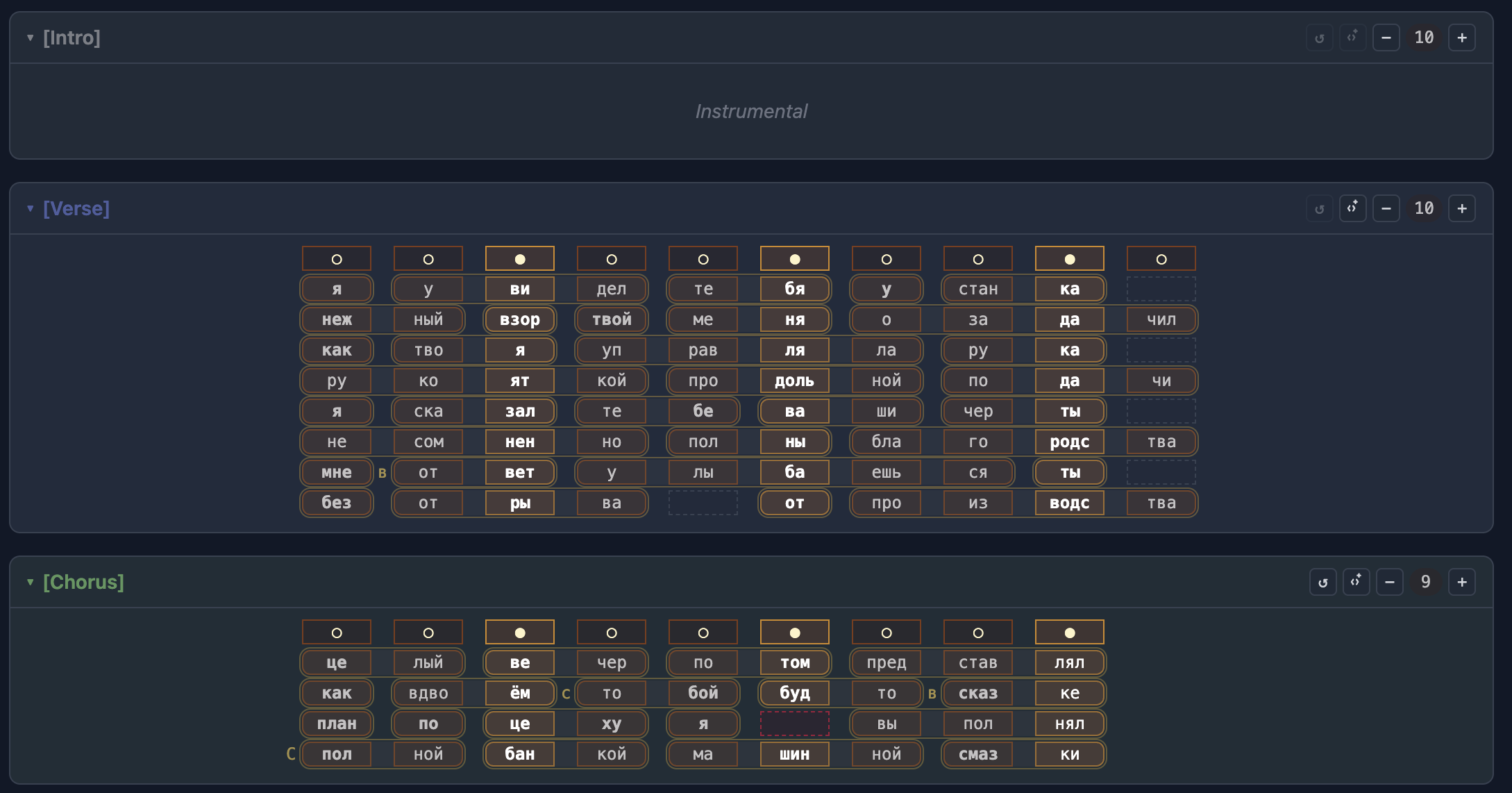
Clicking a syllable does not change its stress: the syllable cells are for dragging, and the beat cells at the top of the card are for stress. If a word is stressed wrongly, fix it at the source — mark it in the text with Tab, or save it to your dictionary with Ctrl+Shift+A. What you can click is the beat row: every / cell toggles, and that changes the pulse the whole block is measured against.
Rearranging words by hand
The automatic placement is a starting point, not a verdict. Any word with room to move can be dragged.
- Drag a syllable sideways and the whole word moves with it, syllable by syllable — the cells snap to beats, so a word cannot end up between two beats.
- A word can only move into free space. It will not jump over its neighbours; the drag stops where the next word begins. Cells you can drag say drag to move when you hover them, and the cursor changes to a grab hand.
- The first and last word of a line can always move one step further out, into the overflow zone on either side of the grid.
- Words pushed out of the bar are not lost. They appear as overflow cells before or after the grid, and can be dragged back in.
- Manual positions are remembered with the song, per line, and survive reload — but changing the block's beat count clears them for that block, because the bar they were positioned against no longer exists.
- Reset syllable positions puts every word in the block back where the automatic placement wants it. The button is greyed out when nothing in the block has been moved.

Every control, and what it does
On a block card

- — the arrow next to the block name. Click the header to collapse or expand the block; the arrow turns as it opens. Collapsed blocks stay collapsed when you come back to the song.
- Reset syllable positions to default — undoes every manual word move in this block. Disabled when there is nothing to undo.
- Auto-fit syllable count — sets the block's beat count to the average number of syllables per line, rounded, and kept between 2 and 24. It is the fastest way to a sane starting bar for a block you have just written. Disabled on an Instrumental block: with no lyric lines there is no average to take.
- / — one beat fewer, one beat more, with the current count between them. The limits are 2 and 24, and the buttons grey out at each end. Beats you remove take their strong marks with them.
In the panel toolbar

Three of these buttons act on the active block, so it is worth saying plainly what that is. The active block is the one holding the text cursor in the lyrics editor — there is no separate "select" control to hunt for in the panel. Its card is drawn with a coloured ring around it, which is how you can tell at a glance which block the toolbar is pointed at. Two things make a block active: putting the cursor inside it in the editor, or clicking that block's body in the grid, which moves the cursor there for you. Click away from both the editor and the panel and no block is active — which is exactly when Copy rhythm, Paste rhythm and Apply rhythm to similar blocks grey out.
- W and H — the two sliders. They set the width (24–80 px) and height (15–40 px) of every cell, for when you want more of the song on screen or bigger type. The setting is remembered.
- Scroll to active lyrics box — a toggle. While it is on, the grid scrolls to keep the block you are editing at the top of the panel.
- Collapse All and Expand All — collapse or open every block at once.
- Copy rhythm (Ctrl+Cmd+C, or Ctrl+Alt+C on Windows) — copies the beat count and the strong beats of the active block. Disabled while no block is active.
- Paste rhythm (Ctrl+Cmd+V, Ctrl+Alt+V) — applies a copied rhythm to the active block. It stays disabled until a block is active and there is a rhythm on the clipboard; hover it and the tooltip says which of the two is missing.
- Apply rhythm to similar blocks (Ctrl+Cmd+A, Ctrl+Alt+A) — gives the active block's rhythm to every block of the same kind: one chorus set up well, and every other chorus follows. Disabled while no block is active.
In the grid itself
- / beat cell — click to make the beat strong or weak. This is the one thing in the grid you set by hand rather than derive from the words, and everything else lines up against it.
- A syllable cell — drag it to move its word. Cells with nowhere to go are not draggable.
- A block's body — click anywhere in the card below its header and the text cursor jumps to the start of that block in the lyrics editor, making it the active block. It is the quickest way to arm the three toolbar buttons above without leaving the panel, and neither side scrolls when you do it.
- An empty cell or a stretch cell — nothing to click; they show you where the silence is.
- A row — hover it and its tooltip shows the whole line, syllables joined back into words, so a row you have chopped into beats is still readable as text.
Next
Set the strong beats first, then let auto-fit size the bar, then fix the words that the grid stresses wrongly — and only then start dragging. In that order the grid does most of the work for you.
If you are looking for the word that fits the beat you have just uncovered, the rhyme search and its proximity slider is the other half of the toolkit. Or open a song and try it: the grid is the right-hand panel in the realyrics editor.
More guides in this library
The rest of the site
The guides here describe the editor. These pages show what comes out of it, and what the team writes about the craft itself.
This guide in other languages: Русский Українська